Friday, May 25, 2012

AX 2012 Retail Event Trace Parser - Missing?


Hi there,

I hope everybody had a great week and that you are ready for a well-deserved long and restful weekend.

As you already know, I will be working on a series of articles related to the Microsoft Dynamics AX 2012 POS application. Last week I wrote an article called
AX 2012 POS Development - Application Triggers. Please check it out if you haven’t already done so.

In the course of this week I have been gathering a lot of information about the AX 2012 POS application, and the more I work with it, the more sense it makes to me. There are many different layers to this application, but this will be covered in future articles.

Anyway, this week I was working on a new instance of the AX 2012 POS application. To run it from Visual Studio, I followed the steps outlined in my last article AX 2012 POS Development - Application Triggers.

When all the setup steps were completed, I started the solution, keyed my user name and password and all of the sudden I got the following error:


This was odd as I went back to the demo instance I have and after following the same steps, I did not get this error. Luckily, there is LOG table called RETAILLOG in the AX 2012 POS application that can tell you what’s going on, and for my surprise, I was missing the Microsoft.Dynamics.Retail.EventTraceParser.dll as depicted in the following picture (from a working application).


The solution was easy; I just placed the missing dll to my AX 2012 POS application root folder. So, the Event Trace Parser enables rapid analysis of traces to find the longest running code, longest running SQL query, highest call count and other metrics useful in debugging a performance problem.

The Microsoft.Dynamics.Retail.EventTraceParser.dll is installed when installing AX 2012 for Retail and you can find it in your AX 2012 client folder.

The Walk through major features of Microsoft Dynamics AX 2012 article will give you a good introduction to its basic concepts.

That’s it for now folks. I hope you have a wonderful weekend. And stay tune for more to come on AX 2012 POS development. Next week I will post about how to use the AX 2012 POS System.Settings dynamics library and its in-memory functions.

Also, the following week I will write about Blank Operations by going through a really cool simple project.
Take Care!


Saturday, May 19, 2012

AX 2012 POS Development - Application Triggers


Hi There!

I hope everybody had a really good weekend. I rode my motorcycle to upstate New York and it was awesome.

Anyway, I will be working on a series of post related to the Microsoft Dynamics AX 2012 POS application. There is a lot to learn and therefore to cover, so I made the choice to start by showing a simple example on how the Application Triggers work.

Application Triggers are called before and after certain operations when the Microsoft Dynamics AX 2012 POS application is running. This is the first assembly that AX 2012 POS looks at when starting.

In addition, you can override the default Application Triggers’ operations by using the IApplicationTrigger interface provided by the Microsoft.Dynamics.Retail.Pos.Contracts.Triggers namespace in Visual Studio 2010.


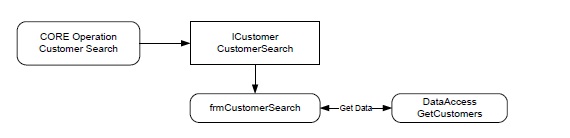
It is important to understand AX 2012 Retail POS development lies heavily on using interfaces. Most operations that interact with AX 2012 POS are executed through interfaces. For example, the following picture depicts the use of the ICustomer interface.


NOTE: The dll for this namespace can be found in the AX 2012 POS Fiscal Form. For more information on this, you can download the AX 2012 POS Fiscal Sample from Partner Source.

So, let’s start by setting up the environment in Visual Studio 2010. Please note that to complete this tutorial you will need to have the AX 2012 POS application running in a machine you can work on.

Open the Visual Studio Solution Fiscal Sample and do the following:


1- Right click on the ApplicationTriggers project and choose properties.


2- In the Application tab make sure both the Assembly Name and Default Namespace have the name ApplicatioTriggers. In addition, make sure your Output Type is set to Class Library.


3- In the Build tab chose All Configurations from the Configuration drop down list and click the brose button. Navigate to the AX 2012 POS application and look for a folder called Triggers.


4- In the Debug tab, choose All Configurations from the Configuration drop down list. In addition, navigate to the AX 2012 POS application and look for the POS executable. This is really cool as by doing this, we can accomplish two things. (1) Start the AX 2012 POS application when debugging, and (2) we can debug all the code we want straight from our cozy chair in from of our Visual Studio 2010.


5- All the assemblies need to be signed. The Fiscal Sample comes with an assembly called FiscalSample.snk. I’m using my own, which does not make any difference for the purposes of this tutorial. In fact, for this tutorial, you can create your own.

6- In the Signing tab, check the Sign the assembly and choose New. A new window will appear and just give it any name you want. This will create an assembly file in your Visual Studio solution. You can then copy it and paste it to other projects.


7- We need to add a few references. So right click in references and choose the one depicted in the figure in step 8


8- Import the following references.


9- Add the references depicted above to your .cs file as seen in the following picture. Also, the following picture shows the  IApplicationTriggers interface being implemented by our class. This is actually very important as without it, nothing will happen and you will not be able to run your AX 2012 POS application. Make sure your code looks as the one below.


10- Build the solution. By doing this, you are overriding the default ApplicationTriggers.dll dynamics library with the code in step 9. Make sure you don’t have any build errors.


11- Run the solution and you should see the following two messages.


The messages above are executed from the following two methods:

a- Public void ApplicationStart()
b- Public void LoginWindowVisible()


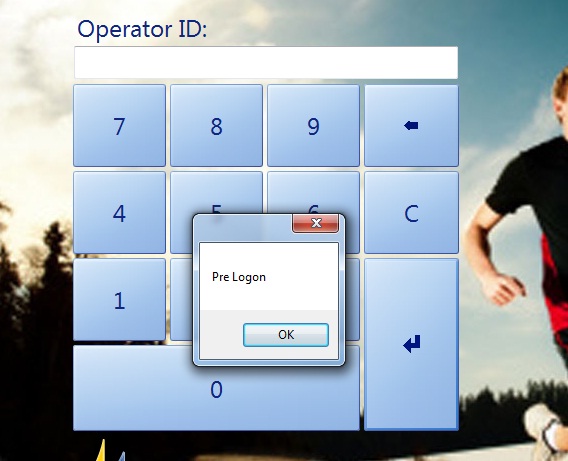
12- Before the login windows appears you should see the following message.


The message above are executed from the public void PreLogon() method.


13- Enter the user name and password and you should see the following message.


The message above are executed from the public void PreLogon() method.


14- Click the Log Off button and you should see the following message.


The message above are executed from the public void LogOff() method.


As I mentioned at the beginning of this post, there is a lot to learn. I also think that the Microsoft team did an excellent job simplifying the POS development from the AX 2009 POS version. Unfortunately, there is not a lot of information available for AX 2012 POS development in Partner Source and/or TechnNet, and it is my hope the Microsoft can start releasing some of it soon. Until then, let's wok together on discovering the new stuff in AX 2012 POS.


That’s all for now folks.


Stay tune for my next post on Blank Operations for AX 2012 POS development. In addition, I will also cover the POS architecture and other really cool stuff around it.


Take care!


Friday, May 11, 2012

Bill Gate's vision on AX 4.0 - Interesting piece of history


Hi,


I found a video of Bill Gates introducing Microsoft Dynamics AX 4.0 and the integration with the Linc Group. It is amazing to see that his vision is now a complete reality with AX 2012 and AX 2012 for Retail.


Check it out.


That's all for now.


Friday, April 27, 2012

Creating a Service in AX 2012 / Consuming a Service in Visual Studio 2010

Hi There!

As promised, in this post we’ll see how to create a simple demo service using AX 2012. Please refer to my last post about AX 2012 Service Documents Types and A Simple Introduction to AX 2012 Services Architecture to get a more detailed explanation to AX 2012 Services.

Also, I would like to point out that AX 2012 services are hosted on the AOS, and that both internal and external applications will be authenticated through the AOS.  With this being said, the following example will be an internal application that will get the customer name from AX services.

If I wanted to have an external application executing the same operation I would have to host the services in IIS. For more information on services please refer to this white paper.

Further, when working with AX 2012 WCF services, we will have to dive into data contracts. In this sample service will use a DataContractAttribute. The string DataContractAttribute indicates that this class is a Data Contract. The square brackets [] indicate that this string is an attribute. We are also going to be using Data Members, which would help us define the default values for our data contracts.

If you are new to this, don’t worry, you can find a lot of information about Data Contracts and Data Members out there.

Another concept that we’ll be exposed on this example is the SysEntryPointAttribute, which helps with authorization checks and how they are performed for a method that is called on the server. Further, this is a very important class when working with Services in AX 2012 as we have to use it for all service operations.

So, let’s start working on our simple service. (Please note that I’m working on a project that involves a lot more detail. When done I will share it with you, so we can understand many other concepts about AX 2012 that won’t be covered in this post)

1.       Open the AOT.
2.       Create a new class.
3.       Enhance the class by adding the [DataContractAttribute] attribute.


4.       Create a new method.
5.       Enhance the class by adding the [DataMemberAttribute] attribute.


6.       Create another class.
7.       Create a method that instantiates the class created in Step 2.
8.       Enhance the class that uses the [SysEntryPointAttribute] attribute.


9.       Right-click the Services node in the AOT and select New Service.
10.       Enter a name into the Name property.
11.       Set the Class property to the class created in Step 6.
12.       Expand the new service node.
13.       Right-click the Operations node and select Add Operations.


14.       Right-click the Services Group node in the AOT and select New Service Group.
15.       Enter a name into the Name property.
16.       Drag-and-drop the service created in step 9 under the Service Group node.
17.       Right-click the service group and select Deploy service group.


Ok, so at this point we should have our new AX 2012 service already working. The next step is to learn how to use this service from Visual Studio 2010. Please refer to this article if you are new to adding services references to Visual Studio. It will help you understand the underlying concepts of this operation.

1.       Select File > New > Project to create a new project of type Console Application.
2.       Enter a name into the Name field and then click OK.


3.       Right-click the Service reference node under the project.
4.       Select Add Service Reference.
5.       Enter the address and then click GO.
6.       Select the service and then click OK.

NOTE: The address format in step 5 is http://<machinename>:8101/DynamicsAx/Services/Xpp. 


7.       Invoke the service from the client.


8.       Click F5 to run the service.

As you can see, when you run the service, the first customer name that are available in your system will be presented as an output.  There is a lot more to services and you can start learning more about it by going to partner source and/or downloading the new AX 2012 white papers focusing on services.

I will be posting a lot more on this later soon, so keep reading my blog as there is a lot more to come.

Take Care and have a great weekend!


Wednesday, April 25, 2012

A Simple Introduction to AX 2012 Services Architecture


Hi there!

I hope that everyone is having a super productive and challenging week.  On this thought, I thought on challenging myself and talk a bit more about the AX 2012 services architecture. Please refer to my post about AX 2012 Services Types for more information on services.

Ok, so what’s new in AX 2012 around services? Well, I have to say that things have change quite a bit for the better as in Ax 2012 we see that Microsoft has expanded the support for WCF beyond the basic HTTP and HTTPS bindings.  In fact, the Microsoft Message Queuing (MSMQ) and BizTalk Server adapters provided in AX 2009 have been removed, but cheer up; Microsoft is providing the same functionality through WCF.

The following diagram depicts the new AX 2012 architecture.


As we can see in the above diagram, the AOS is the WCF service host in AX 2012. This idea extends even further, the services that are hosted by the AOS work both with internal and external applications. So does this mean that we don’t need IIS anymore?

Well, yes and no. If you are planning to have only internal application using the WCF services, then you no longer need IIS. However, if the services are going to be consumed by external application, then you have to host the services on IIS.

Also, it is important to point out that the WCF services in AX 2012 are contained in a single WSDL file. This simplifies the use of services when using visual studio for example. The reason is because we would just need to add one single reference instead of 90, which is cool and smart.

Another cool new architectural change of AX 2012 services are the data contracts, and the business operation framework.

AX 2012 now supports the use of .NET and X++ types as data contracts to use as service operation inputs, and to also return parameters.  The following are the new changes:

o   You can pass complex data types without having to explicitly implement XML serialization and deserialization from them.

o   The data contract serialization and deserialization is now handled by Windows Communication Foundation (WCF).

o   X++ provides support for data contract functionality through the DataContractAttribute and DataMemberAttribute attributes (which I will cover in my next post)

o   Any .NET type that is serializable by WCF can be used as a parameter or return type by a service in Microsoft Dynamics AX 2012.

Another new enhancement of AX 2012 is the Business Operation Framework, which is a service operation exposed from the AOS. Remember that in AX 2009 we would have to use the RunBase batch class to execute AIF calls asynchronously? In AX 2012, we can now use the business operation framework, which support both synchronously and asynchronously operations. In addition, although the RunBase framework is still supported in AX 2012, Microsoft recommends using the new Business Operation Framework instead because it provides a clean separation between the data contract, user interface and the service operation. 


This is all for now and I hope this post can be helpful to you. Please check my blog again later this week as I will be posting how to create services in AX 2012 and consume them from C# this week soon.


Take care!


Monday, April 23, 2012

A Simple Exploration to Table Inheritance in AX 2012


Hi There!

On this post I would like to explore table inheritance in AX 2012. Microsoft has made a lot of changes to the table structure in this new release and it is important that we understand the core rules of this new concept.

In a nutshell, a table in AX 2012 can be extended (as a base table) to other tables. On this same thought, a table also can derive from another table.  So how does AX 2012 support this? Well, tables in AX 2012 have two new properties; (1) SupportInheritance property, and (2) the Extends property, which together control table inheritance.


So, when do we know we can use table inheritance?  First of all, we need to define which table will be the proposed base table, and the proposed derived table.  In addition, the following conditions (From a Microsoft Source) will tell us whether we can use inheritance between two tables:

  1. There is no thought that there might be a 1-to-many or many-to-many relationship between the two tables.
  2. An existing row in the proposed base table, and the corresponding row in the derived table, both refer to the same item in the real world.
  3. Each row in the proposed base table has exactly one corresponding row in the derived table.
  4. If one row is ever deleted from either table, the corresponding row must also be deleted.
  5. The base table probably has at least two tables that derive from it.
    1. The two derived tables have fields for different kinds of things.
    2. The two derived tables refer to different variations of the general items that are tracked together in the base table. 
  6. No item that is represented in a base table would ever be represented in more than one of its derived tables.
  7. The derived table is not meant for performance tuning of the physical database, such as placing an image column in its own table.

Moving right along, let’s see an example of this. Let’s take a dealership that sales Cars and Trucks.  The dealership knows that both the cars and trucks have a Make and a Model. However, at the same time, the dealership wants to know a specific “thing” about the car and the truck that is not part of both.

In the following example, the dealership puts together a spreadsheet with two columns (one for the car and one for the truck). They identify that a Car and a Truck can be in one entity sharing the model and the make, but they need to also track how many passengers a car can sit in a car, and how much weight a can be loaded into a truck.


Vehicle – Car
Vehicle - Truck
Model
Model
Make
Make
Number of passengers
Maximum Weight


This is the perfect example to implement table inheritance as we can recommend to the dealership to create two separate tables for the two different conditions that they need to track (number of passengers and weight)

So, this is how table inheritance would work; The RecId system field has been added to each table as the primary key. Also, the system field InstanceRelationTypeId has been added to the base table, and its values refer to derived tables.

Car – Truck Table

Vehicle Make
Vehicle Model
InstantRelationTypeId
RecId
Toyota
Scion
50011
1234567890
Mac
Loader
50012
1234567891
Freightliner
Speed King
50012
1234567892
Ferrari
Diablo
50011
1234567893

Weights Table (Instant Relationship type 50012)
Weight
RecId
658 lbs
1234567891
1569852 lbs
1234567892

Passengers Table (Instant Relationship type 50011)
MaxPassengers
RecId
5
1234567890
2
1234567893


In the example above, the Car-Truck Table holds the common data for both cars and trucks’ make and models. The field InstanceRelationTypeId defines which table will be inherited from, and the RecId field defines the related record on the derived tables.
There is a lot more to learn about this topic, and I encourage you to visit partner source and/or the Microsoft resources about it.
This is all for now, but check my blog later this week to learn about creating services in AX 2012 and consuming them from an external C# application.